GFL Front Office User Manual
Welcome to the GFL Front Office! This guide will walk you through everything you need to know to manage your franchise, from logging in to making draft-day trades.
1. Getting Started: Your First Steps
Welcome to the league! Here's how to get logged in and start managing your team.
1.1. Logging In
To get started, you'll need to log in to your account.
- Navigate to the Login page. You can usually find a "Login" button on the homepage.
- Enter your Team Name or Email Address.
- Enter your Password.
- Click the Enter Front Office button.
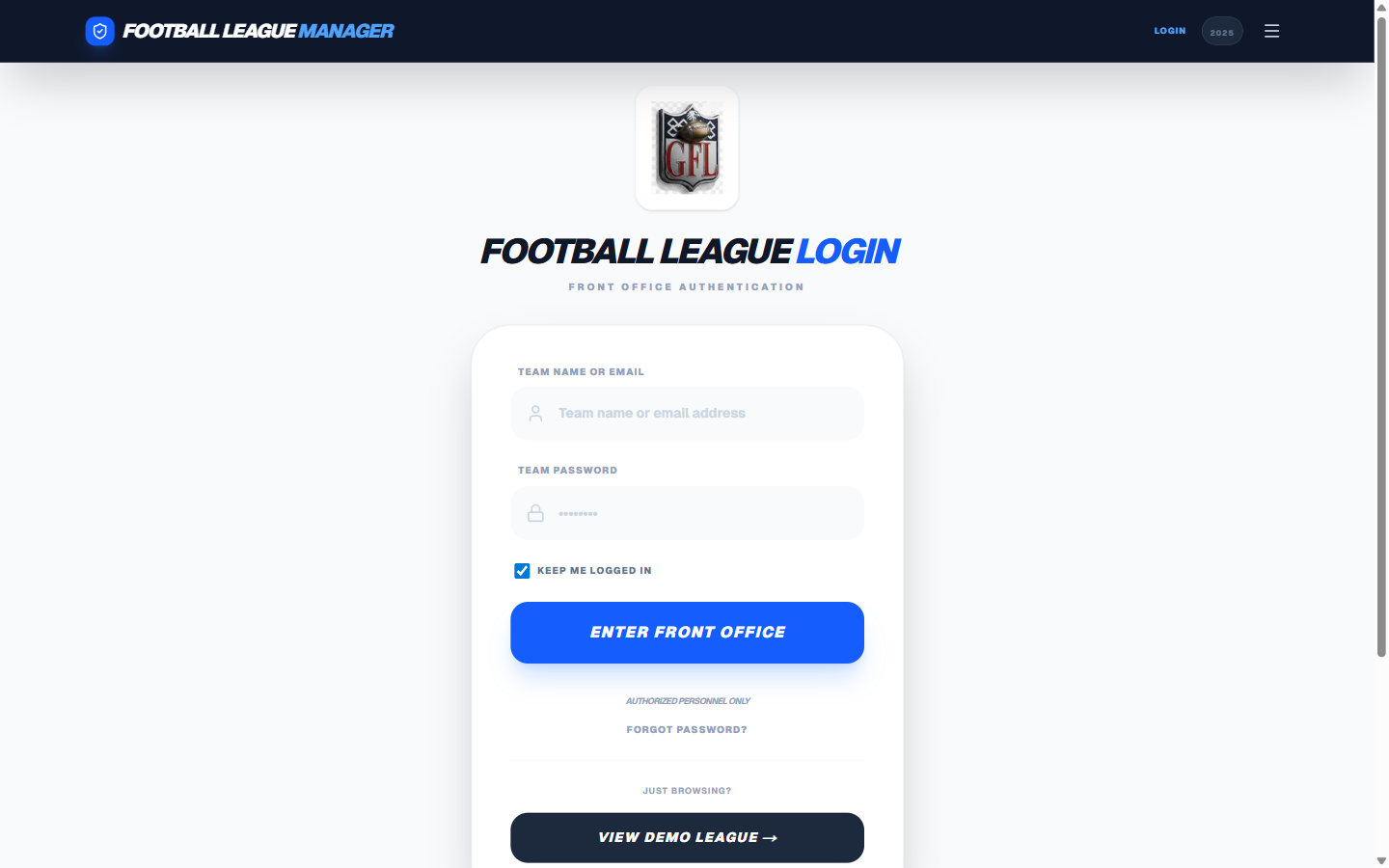
Pro Tip: Keep the "Keep Me Logged In" box checked, and you'll stay logged in for 30 days!
Once you're logged in, you'll be taken to the homepage, where you'll see your franchise name in the top navigation bar.
1.2. New Coaches: Creating Your Account
If you're a new coach, you'll need to create an account.
- From the login page, click on the "Create an Account" link.
- Fill out the registration form with your details:
- League ID: Your commissioner will provide this.
- Coach Name: Your full name.
- Team Name: Your franchise name (e.g., "Amalfi").
- Shortcode: A unique 3-6 character abbreviation for your team (e.g., "AFL").
- Email & Mobile: Optional, but recommended for league communications.
- Password: Choose a secure password (at least 6 characters).
- Click Submit Registration.
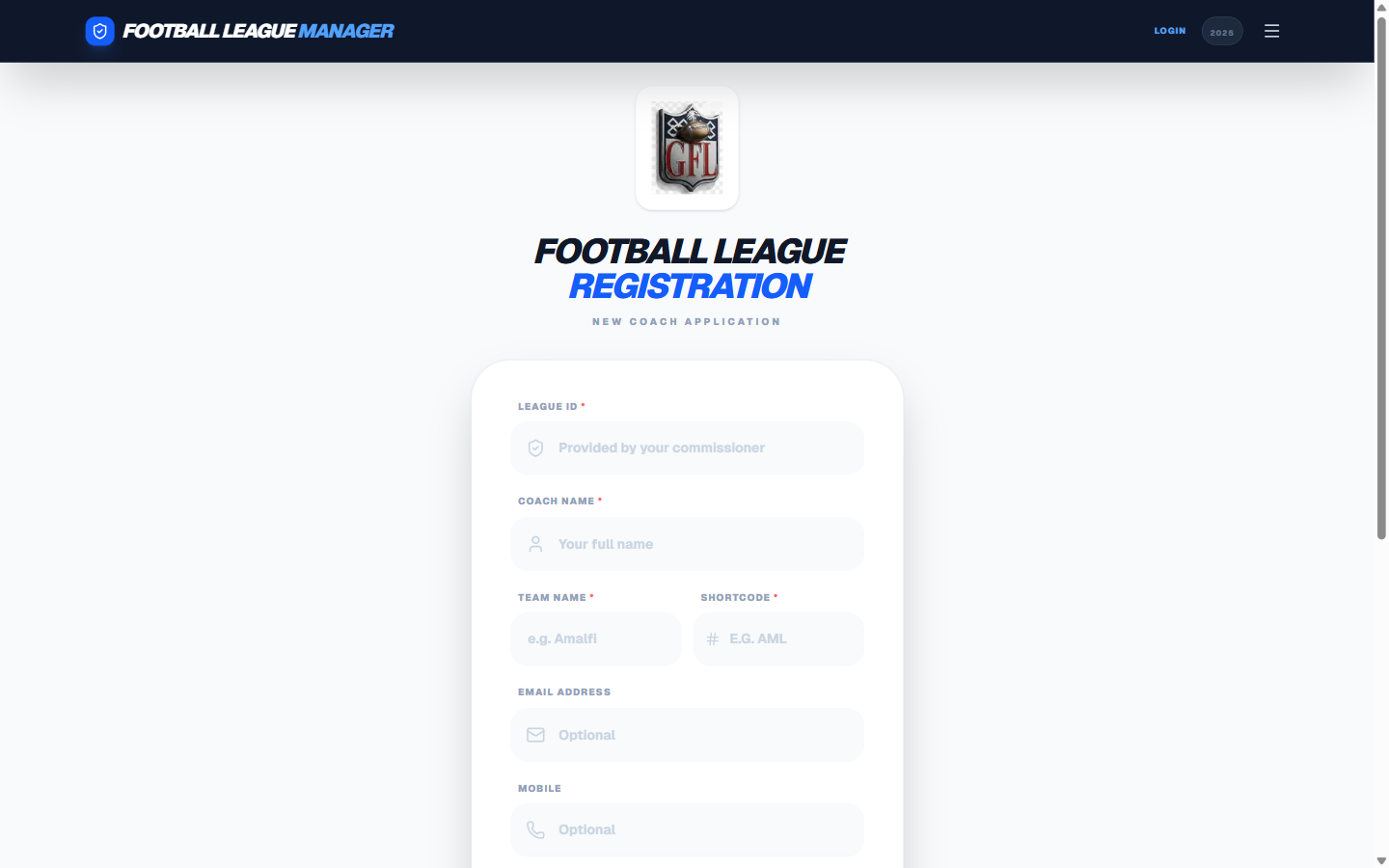
After you register, your account will be pending approval from the league commissioner. They'll let you know when your account is active and ready to use.
1.3. Forgot Your Password?
It happens to the best of us. If you forget your password:
- On the login page, click the "Forgot Password?" link.
- A window will pop up with the commissioner's contact info.
- Click "Send Recovery Email" to send a pre-filled email to the commissioner asking for a password reset. The commissioner will then reset your password and get in touch with you.
2. The Home Page: Your Central Hub
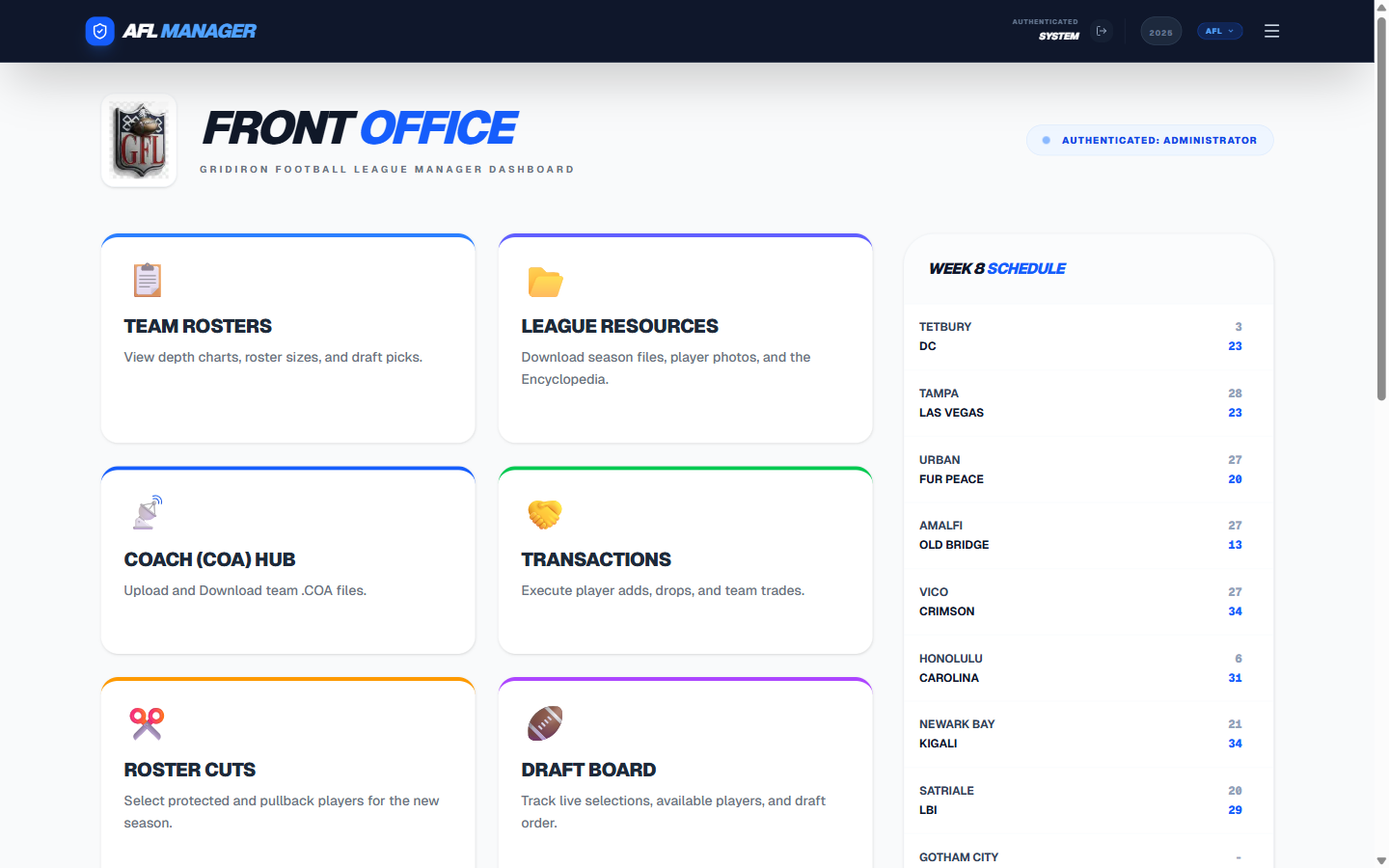
The home page is your command center. From here, you can access all the major features of the AFL Front Office.
Feature Cards
The main area of the home page is a grid of feature cards. Each card is a link to a different part of the application. Some cards may require you to be logged in.
Here's a quick overview of the cards:
- Team Rosters: View and search every team's roster and depth chart.
- League Resources: Download league files, documents, and other assets.
- Coach (COA) Hub: Upload and download your
.COAgameday file. - Transactions: Add, drop, and trade players.
- Roster Cuts: Submit your protected and pullback player selections for the new season.
- Draft Board: The live hub for all draft activity.
- Standings: Check out the current season standings and league history.
- Franchise Settings: Update your profile and change your password.
- Commissioner: The league management panel (for commissioners only).
Weekly Schedule Widget
On the right side of the page, you'll find the Weekly Schedule Widget. This shows the current week's matchups, including scores for completed games.
3. Team Rosters: Know Your Squad (and Your Rivals)
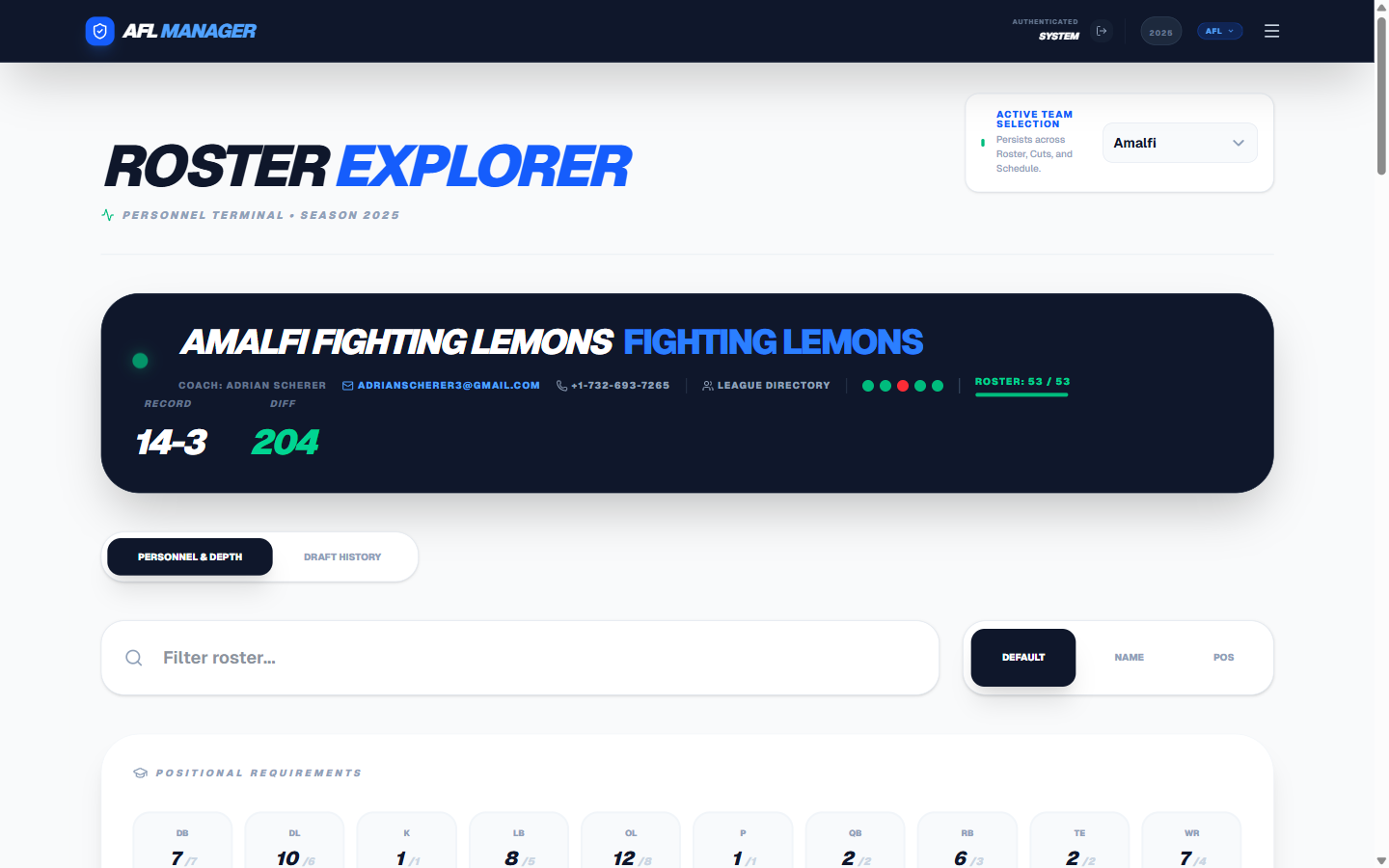
The Team Rosters page is where you can see the full roster for every team in the league.
Browsing Rosters
- Select a Team: Use the dropdown menu at the top right of the page to choose a team.
- Player Cards: Players are organized by position in a depth chart. Each card shows key ratings and stats.
- Player Details: Click on any player card to see a detailed view of their stats, ratings, and contract information.
- Draft History Tab: Switch to the Draft History tab to see the team's current and future draft picks.
Searching and Filtering
- Search: Use the search bar to find a specific player by name.
- Sort: Use the sort buttons (Default / Name / Pos) to reorder the roster.
Team Header
The dark panel at the top shows the team's coach name, contact info, win/loss record, and current roster size (e.g., 53/53). If a player is on Injured Reserve, the badge expands to show the breakdown — for example 54/53 · 1 on IR · 53 active — because IR players do not count against the active roster limit.
Adding a Player to the Trade Block
When you are viewing your own team's roster, a shopping cart icon appears on the right side of each player row.
- Find the player you want to list — they appear in the Offense, Defense, or Special Teams sections.
- Click the shopping cart button on that player's row. The button is grey by default and turns green when a player is already listed.
- A "Post to Trade Block" form will appear. Enter what you are asking for in return (e.g., "1st round pick + starter QB", or "Open to offers").
- Click "Post to Trade Block" to publish the listing. The player will appear immediately on the public Trade Block page for all coaches to see.
To remove a player from the block, click the same button again (it will be green). A confirmation dialog will ask you to confirm the removal.
Note: Only the owner of a team can add or remove players from that team's trade block. The button is not visible when viewing another team's roster.
4. League Standings: See Who's on Top
The League Standings page shows you the current league standings, as well as historical data.
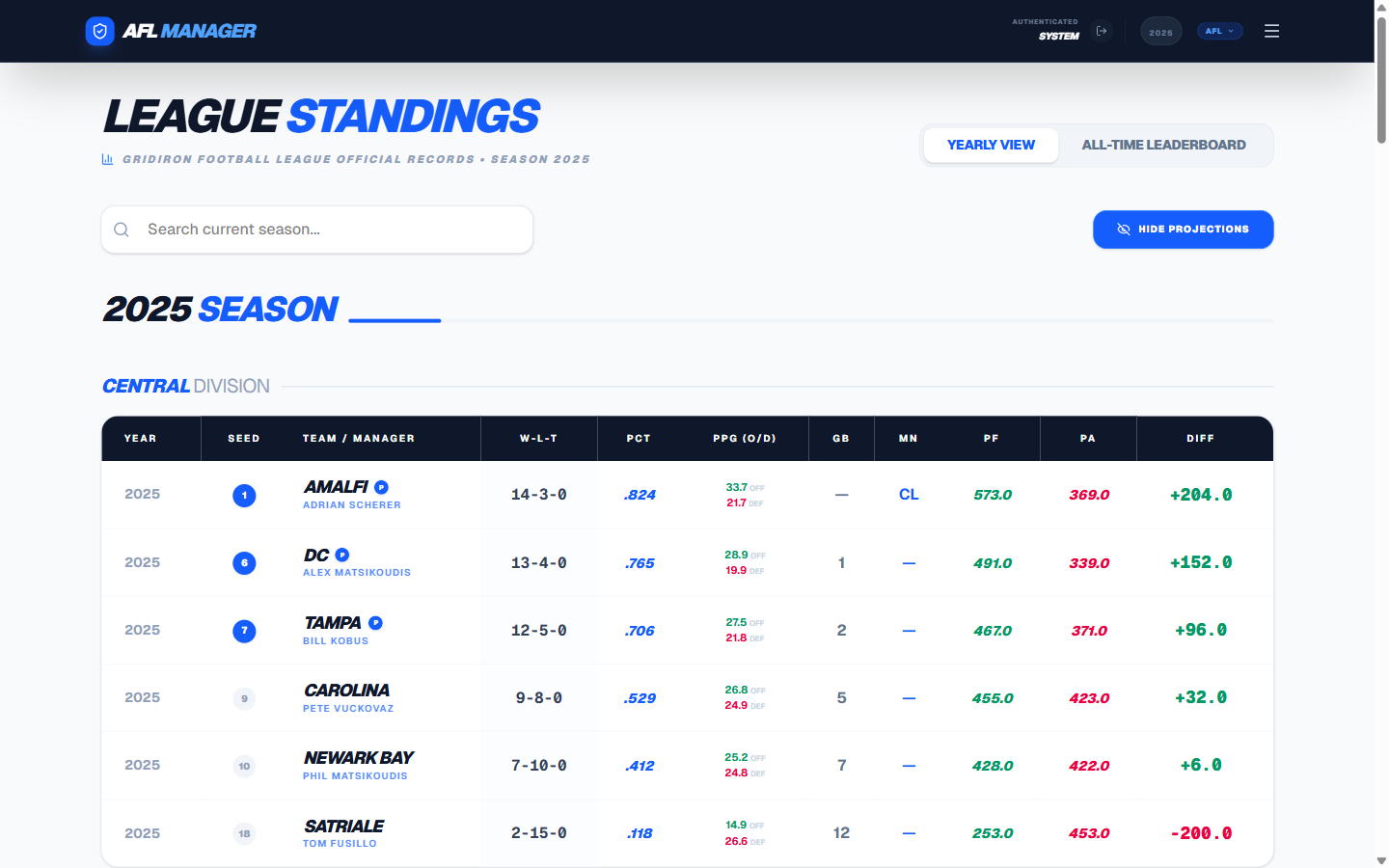
Yearly View
This is the default view, showing the current season's standings organized by division. You can use the year selector to look at past seasons.
The table shows each team's:
- W-L-T record and winning percentage
- PPG (O/D) — Points per game, offense and defense
- PF / PA / Diff — Points for, against, and differential
All-Time Leaderboard
Click on the "All-Time Leaderboard" tab to see career statistics for every franchise, including championships, playoff appearances, and all-time records.
5. League Schedule: Plan Your Season
The League Schedule page shows the full season schedule, week by week. You can see upcoming matchups and the scores of completed games.
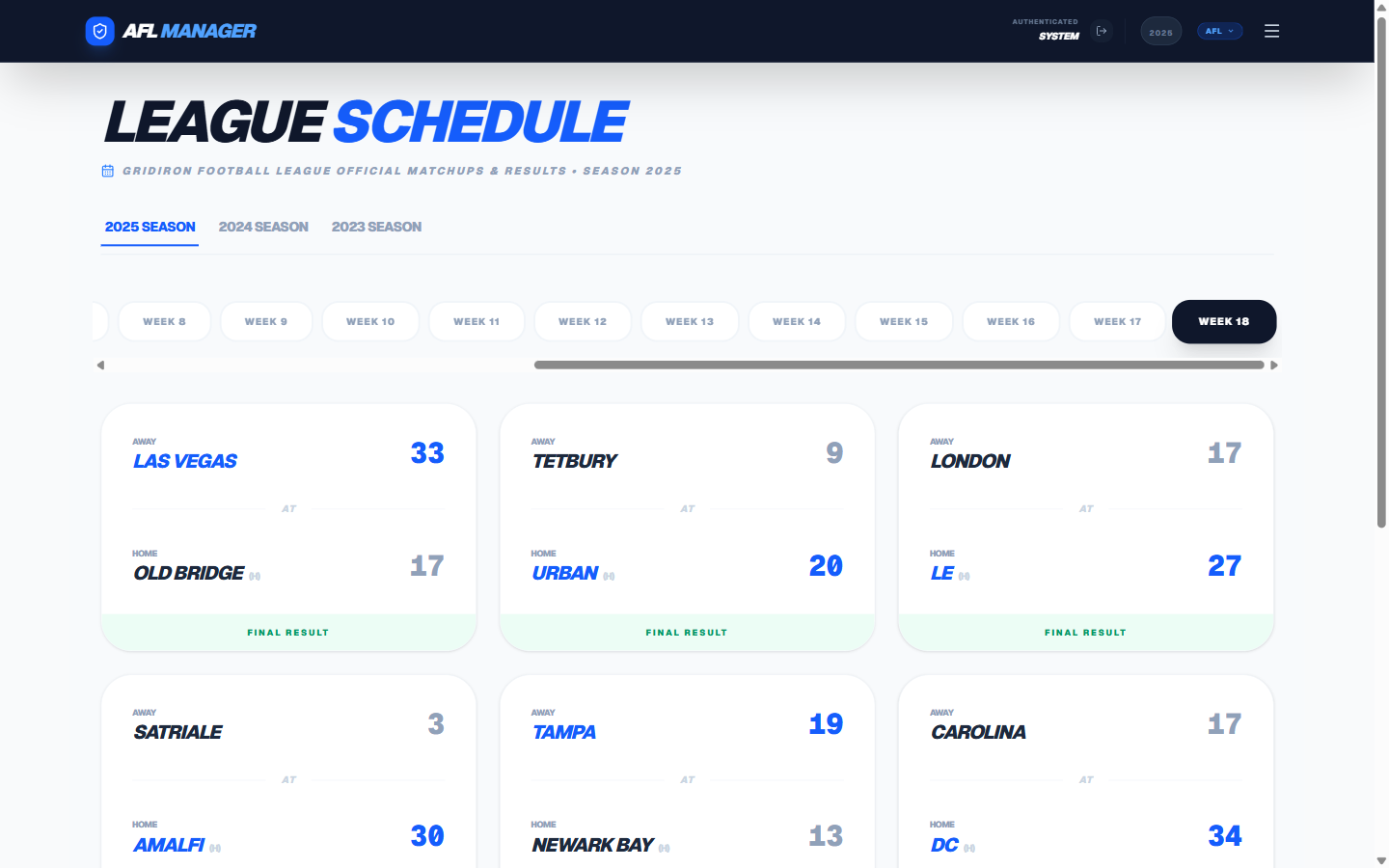
- Use the season tabs (2025 Season, 2024 Season, etc.) to view different years.
- Use the week buttons to jump to a specific week.
- Completed games show a "Final Result" banner with both scores.
6. The Draft Board: Where Champions are Made
The Draft Board is the central hub for all draft activity.

Draft Type Tabs
At the top of the board, use the Free Agent / Rookie / All Types tabs to switch between drafts. Each league can run multiple drafts per season (e.g., a Free Agent Draft and a Rookie Draft) — the tabs keep them separate.
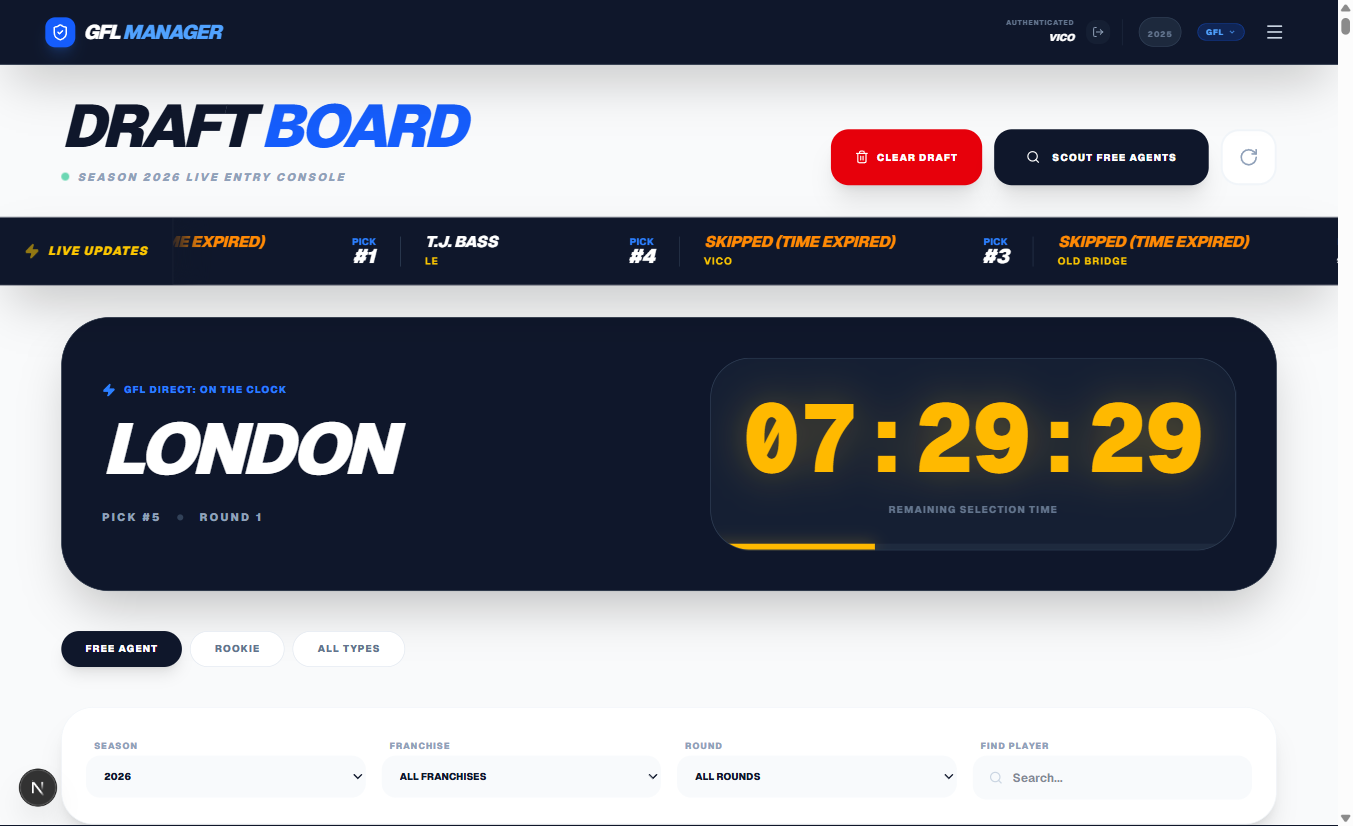
On the Clock
The dark "On the Clock" panel shows:
- Which team is currently picking
- The pick number and round
- A large countdown timer (HH:MM:SS) showing remaining selection time
- A progress bar at the bottom of the panel
Making a Pick
When it's your turn to pick, an "Enter Selection" button appears on your pick row. Click it to search for and select your player.
Roster Limit
You cannot draft a player if your team is already at the active roster limit (typically 53). Players on Injured Reserve do not count toward the limit, so if you have 53 active players plus 1 on IR, you still need to waive or IR a player before you can make a draft pick.
Passing a Pick
If you are done drafting or need to skip your turn, click the "Pass / Done" button next to "Enter Selection". The draft advances to the next team and your pick is marked Passed. The league will receive an email and WhatsApp notification when a pick is passed.
Important: Passing a pick has a carry-forward effect. Each round going forward, the system will automatically skip your pick until you fill the passed pick via a late selection. You are not locked out — you can still make a late selection at any time — but the draft will not wait for you each round.
A "Late Selection" button remains available so you can fill the pick any time before the draft closes.
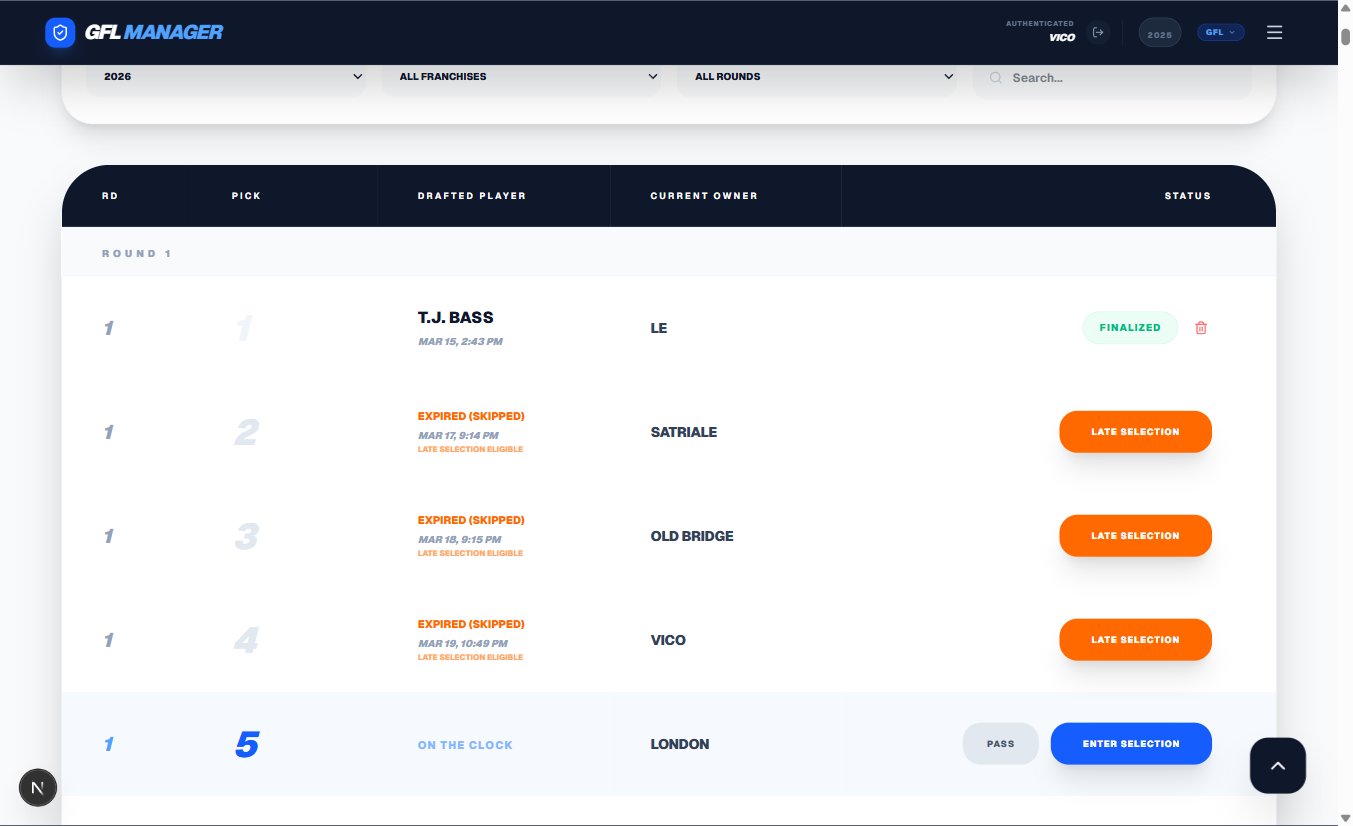
Expired Picks (Auto-Skip) and Strike Counter
If the clock runs out before a pick is made, the pick is automatically Skipped by the system. Like a passed pick, a "Late Selection" button allows the team to still submit their choice after the fact. Auto-skipped picks also trigger the same carry-forward behavior — the team will continue to be skipped each round until the open pick is filled.
The draft board tracks how many times each team has had a pick expire, shown as a strike count next to the team's on-deck position. The count is capped at 3 strikes — additional auto-skips do not increment beyond that.
Auto-Pick Queue
The Auto-Pick Queue lets you pre-rank free agents so the system picks for you automatically when you're on the clock. See Section 6b — Auto-Pick Queue for the full guide on setting up and managing your queue.
How it works: Once your pick becomes active and 30 minutes have elapsed, the system checks your queue and selects your highest-ranked player who is still a free agent. You will receive the standard pick notification when this happens. If you have fewer than 30 minutes on the clock or the clock hasn't started yet, the auto-pick won't fire — the queue only kicks in after the 30-minute delay.
Scouting Free Agents
Click the "Scout Free Agents" button (top right) to open the scouting panel where you can:
- Search for players by name
- Filter by position
- Sort by overall rating, age, or name
- Add players to your watchlist (star icon)
Commissioner Controls
Commissioners see two additional controls:
- Clear Draft (red button, top right) — resets all selections for the current draft type. Requires confirmation. Use with caution.
- Delete icon (next to any finalized pick) — removes a single pick and returns the player to free agency.
6a. Draft Setup: Creating a New Draft (Commissioner Only)
The Draft Setup Wizard is how commissioners generate the draft pick order for a new season. Access it from Commissioner Panel → Draft Setup → Open Setup Wizard, or directly at /draft/setup.
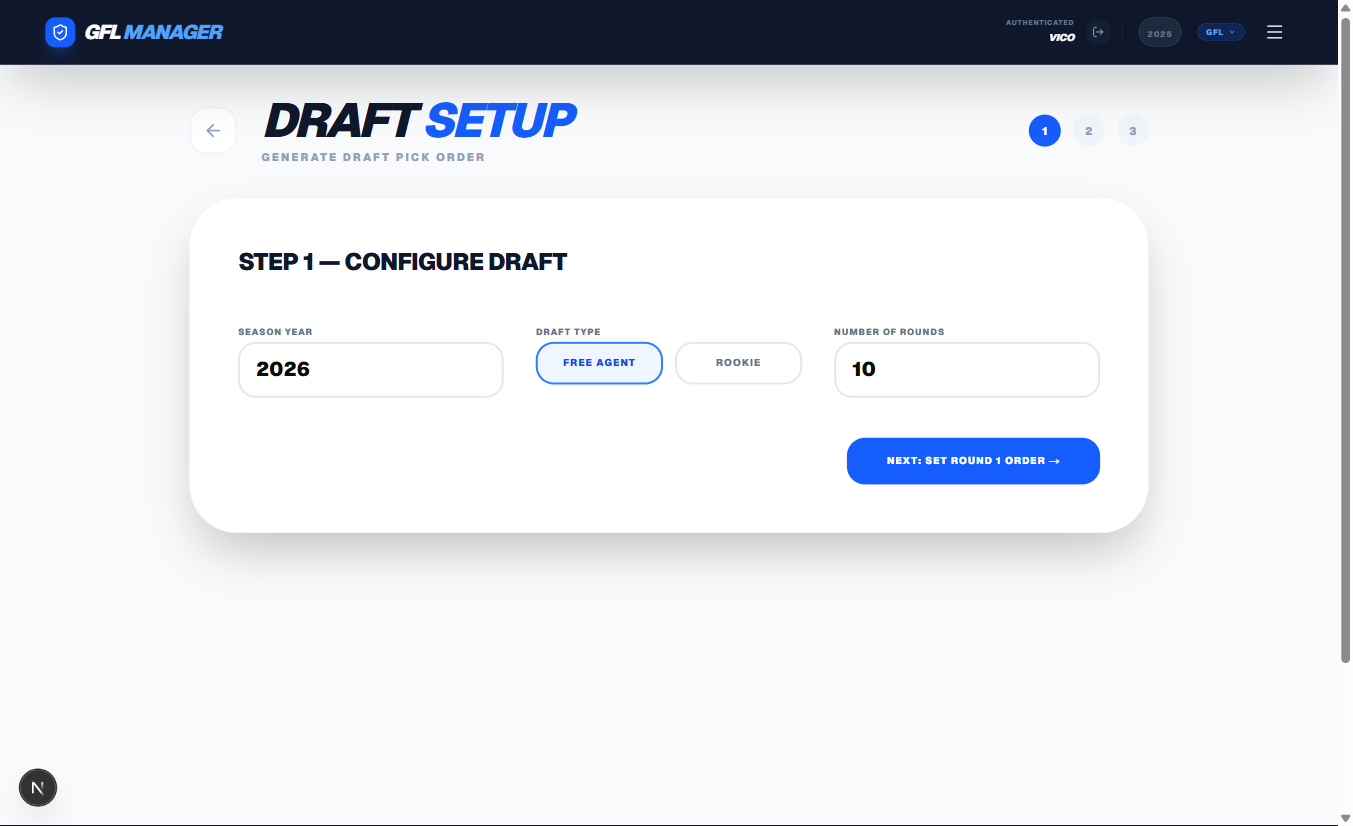
Step 1 — Configure the Draft
Set the basic parameters:
- Season Year — the year this draft applies to
- Draft Type — Free Agent (default) or Rookie
- Number of Rounds — how many rounds the draft will have (can be extended later using the Add Rounds feature without losing existing picks)
Click "Next: Set Round 1 Order →" to continue.
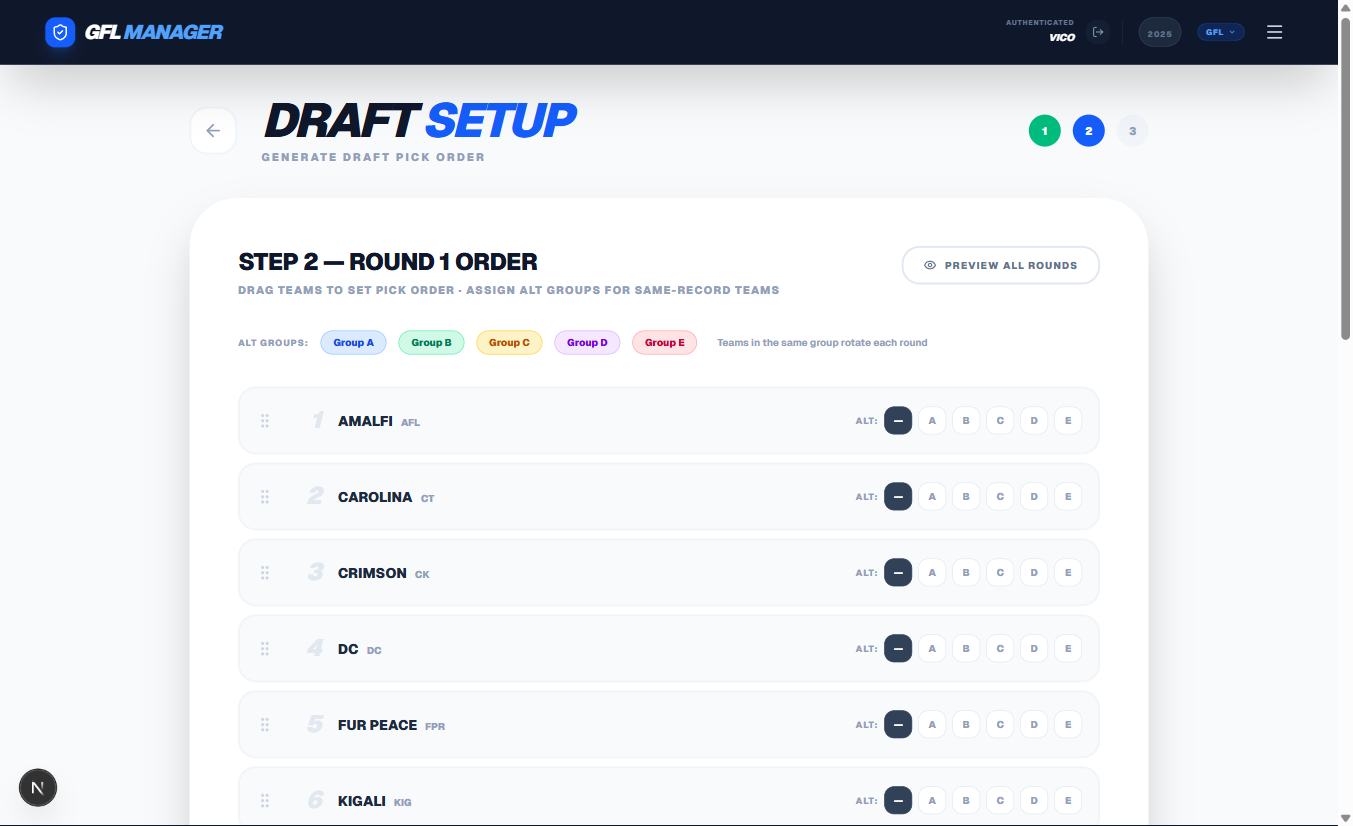
Step 2 — Round 1 Order & Alternate Groups
This is where you define the pick order.
-
Drag teams up or down to set the Round 1 pick order. The number on the left updates as you drag.
-
Assign Alt Groups (A–E) to teams that have the same record and should alternate positions in subsequent rounds. Teams in the same group rotate each round using modular rotation — for example, if LES and SG are both Group A:
- Round 1: LES picks 1st, SG picks 2nd
- Round 2: SG picks 1st, LES picks 2nd
- Round 3: LES picks 1st again, and so on
Groups of 3 or more also rotate in sequence (D picks cycle through all members).
-
Click "Preview All Rounds" to see the full computed pick order for every round before committing.
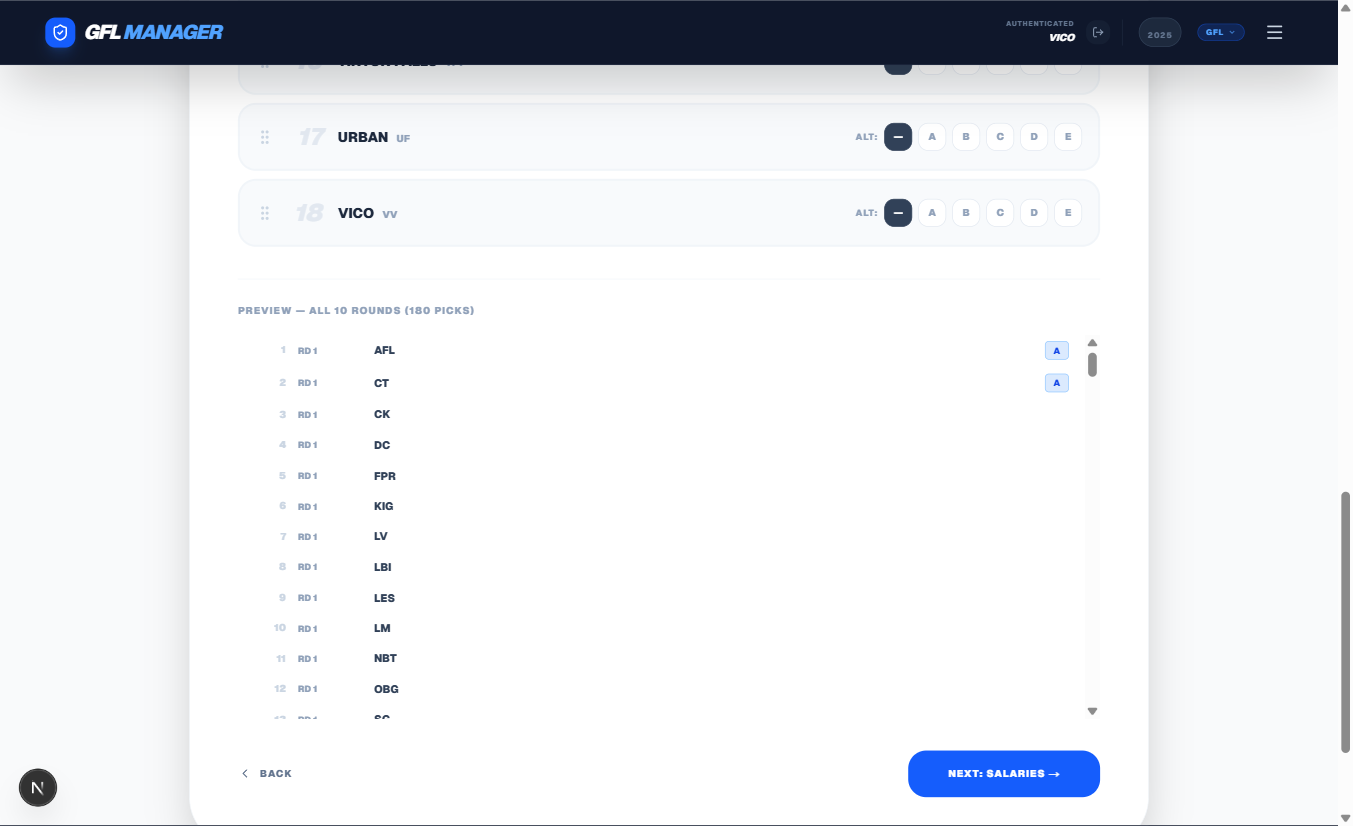
Click "Next: Salaries →" when satisfied.
Step 3 — Salary Per Round (Optional)
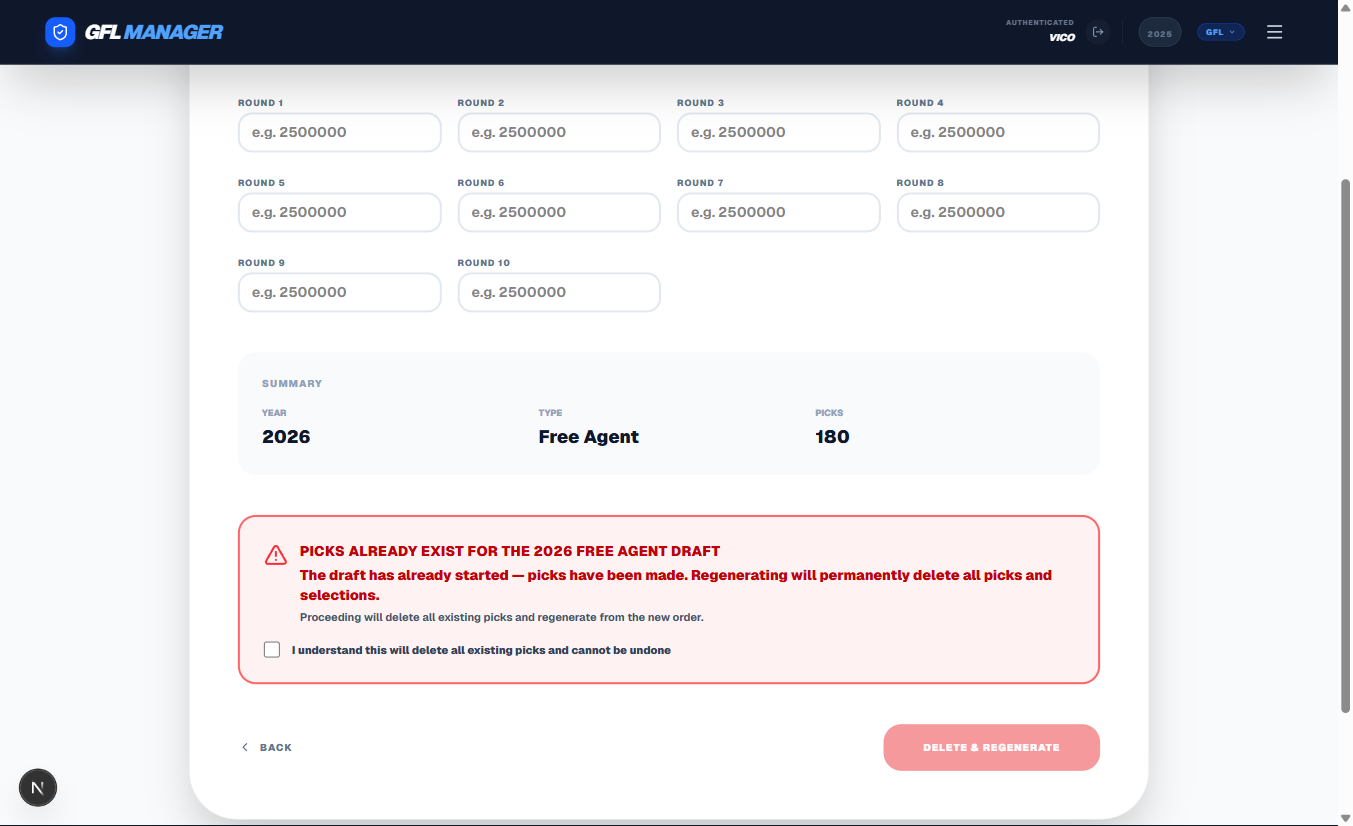
Enter an optional salary cap value for each round. This is stored as a league rule and displayed on the draft board next to each round header, so coaches know the salary attached to each pick.
Leave fields blank to skip salary rules for that round.
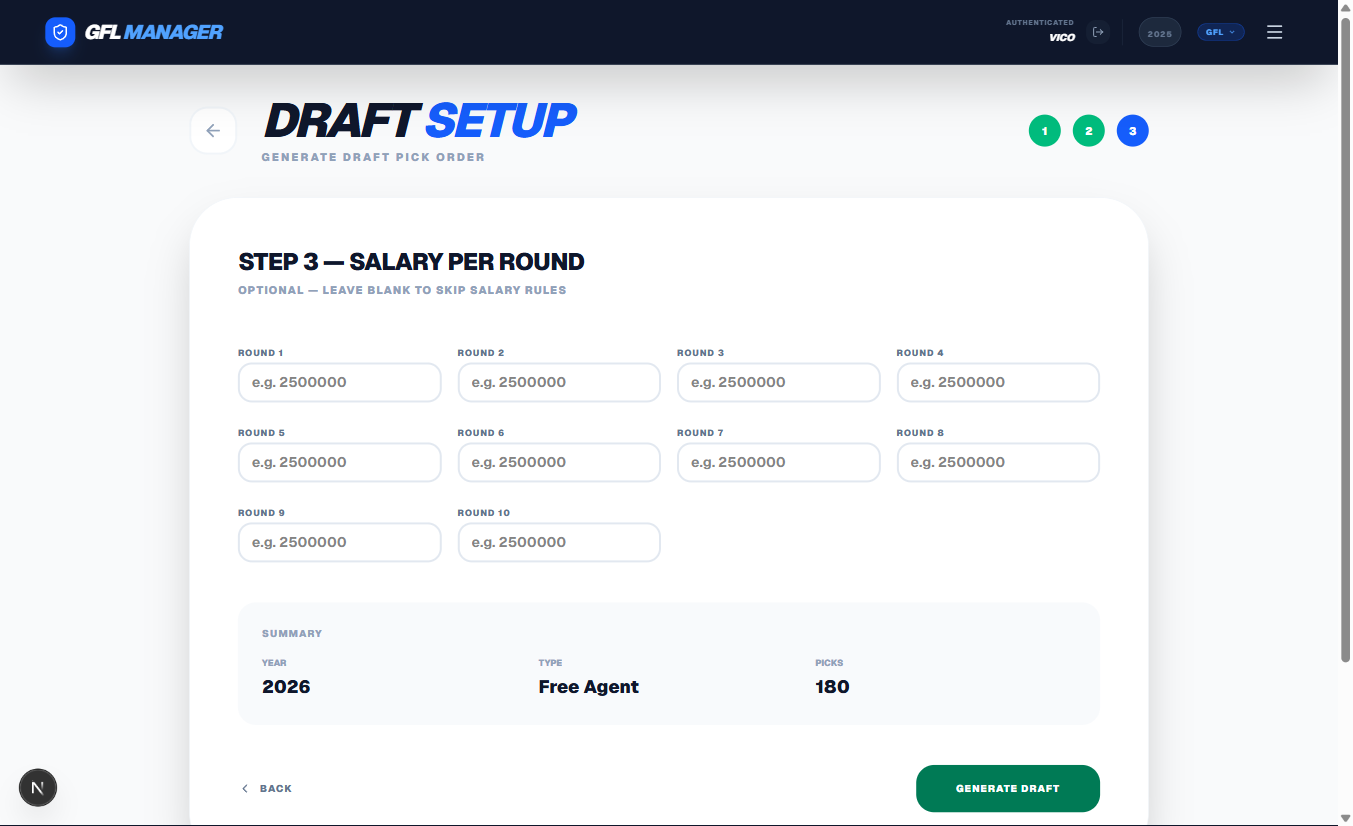
Review the summary (year, type, total picks), then click "Generate Draft" to create all pick rows.
Regenerating a Draft
If picks already exist for the selected year and type, a warning banner appears before generating:
- Yellow warning — picks exist but the draft has not started yet. Safe to regenerate.
- Red warning — the draft has already started (picks have been made). Regenerating will permanently delete all existing picks and selections.
Check the confirmation box and click "Delete & Regenerate" to proceed.
After Generation
You'll see a confirmation screen showing how many picks were created. From there, click "Go to Draft Board" to view the new order, or "New Draft" to set up another draft type for the same season.
Adding Rounds to an In-Progress Draft
If you need to add rounds to a draft that has already started, use the "Add Rounds to Existing Draft" panel — it appears below the wizard on the same page.
- Year — the draft year to extend
- Draft Type — Free Agent or Rookie
- Rounds to Add — how many rounds to append (1–20)
Click "Add Rounds" and the new round rows will be appended immediately. Existing picks and selections are untouched. The team order and any alternate-group rotation are automatically inferred from the existing rounds, so the continuation is seamless.
Note: Pick transfers (traded picks) that cover the new round numbers will also be applied automatically.
6b. Free Agents: Auto-Pick Queue
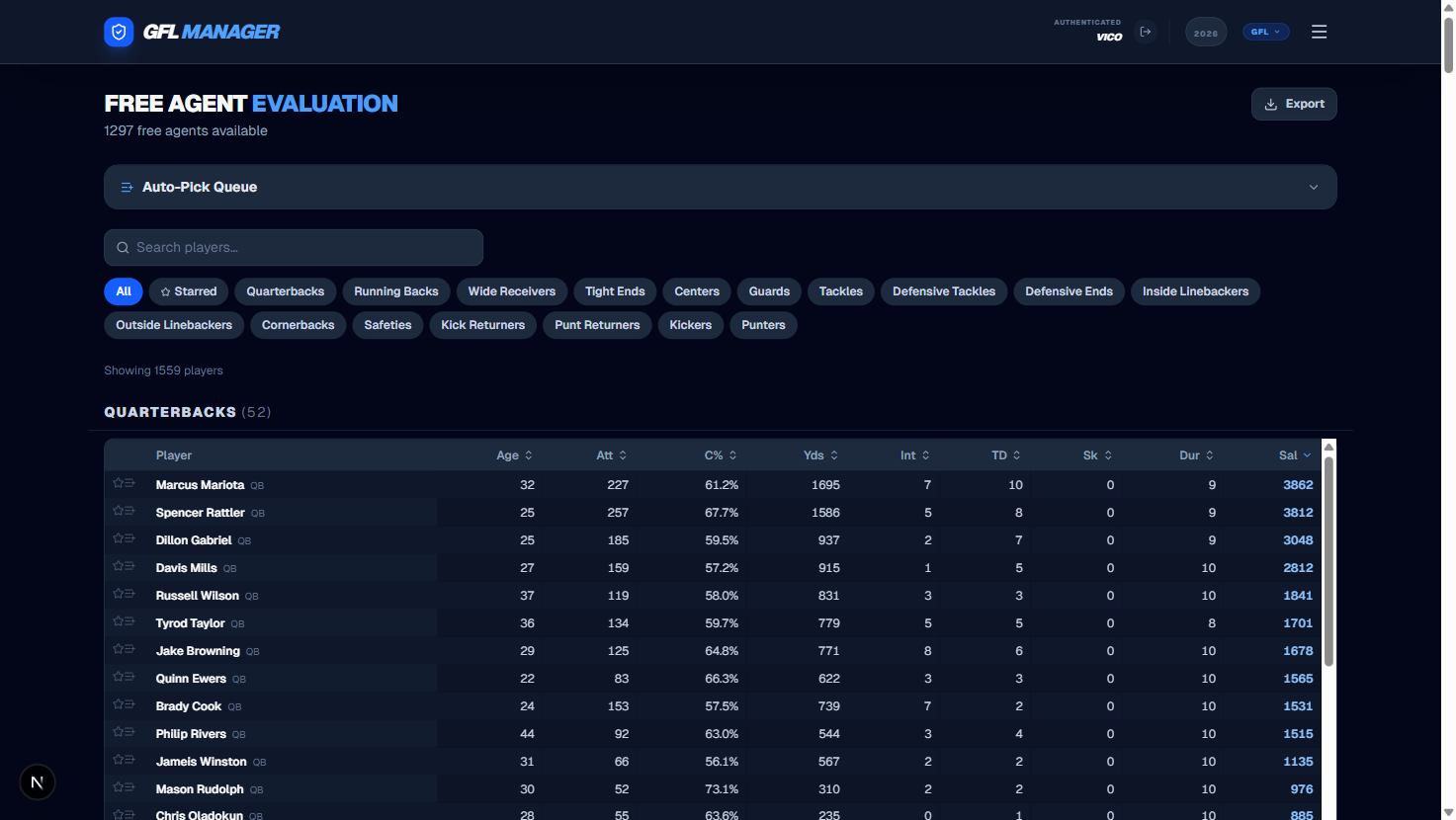
The Free Agents page lists every player not currently on a roster. In addition to browsing and scouting, it lets you build a personal Auto-Pick Queue — a ranked list of players the system will draft for you automatically when it's your turn and you haven't made a pick within 30 minutes.
Opening the Queue Panel
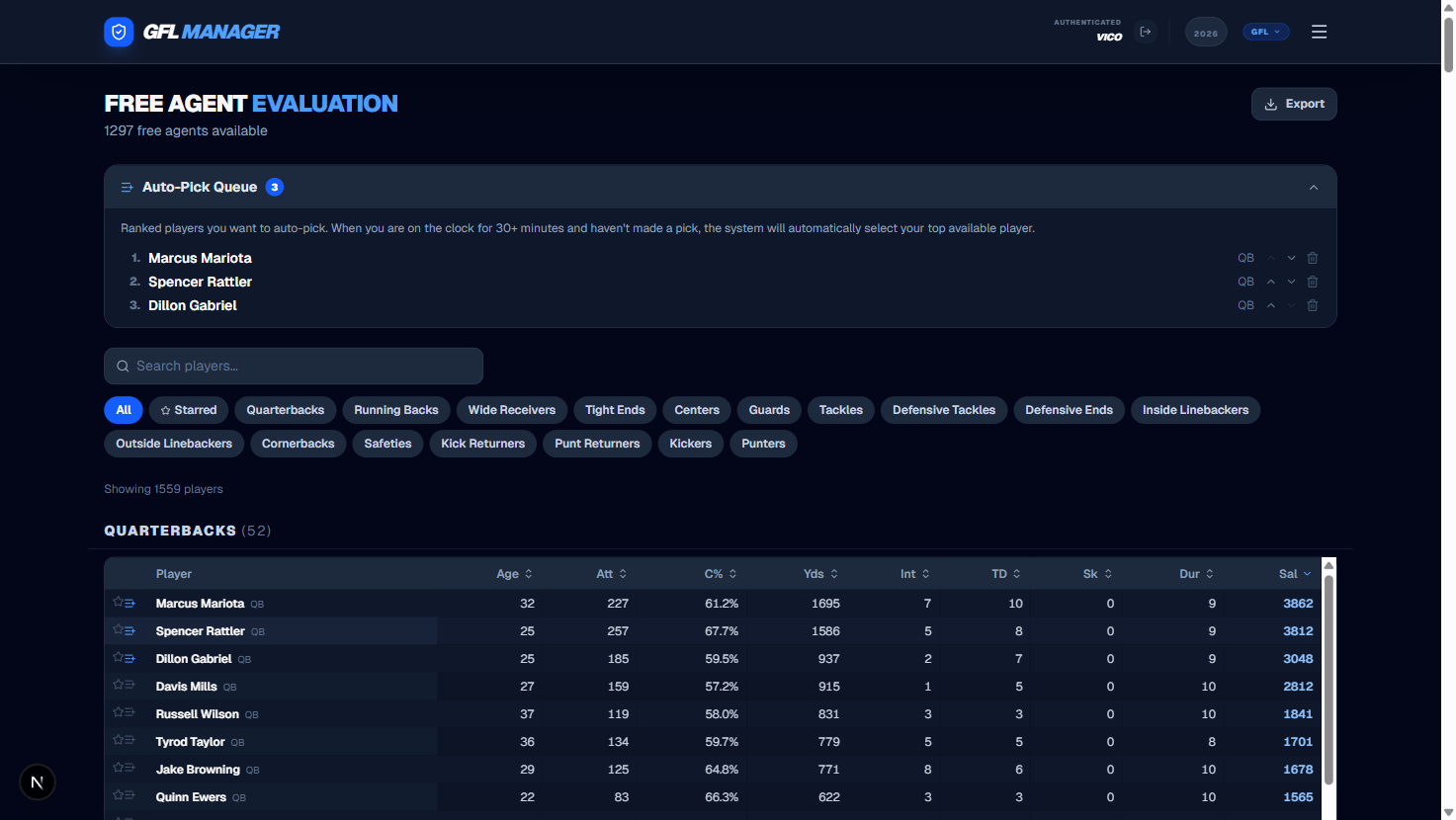
At the top of the Free Agents page, look for the "Auto-Pick Queue" panel header. Click it to expand the panel. A badge on the header shows how many players are currently in your queue. The panel remembers whether you left it open or closed between visits.
Adding Players to the Queue
Each player row in the free agent list has a queue icon on the right side:
- A gray icon means the player is not in your queue — click it to add them.
- A blue icon means the player is already queued.
After clicking, the player appears at the bottom of your queue immediately. You can then reorder them using the arrow buttons.
Reordering the Queue
Inside the queue panel, each entry shows:
- Player name and position
- Up ↑ and Down ↓ arrow buttons to move the player higher or lower in priority
- Trash icon to remove the player from the queue
The top player in the list is picked first. If that player is no longer available (already drafted by another team), the system automatically moves down to the next available player.
How the Auto-Pick Fires
Once your pick becomes active:
- The draft clock starts counting down.
- If 30 minutes elapse and you haven't made a manual selection, the system scans your queue for the highest-ranked player still available as a free agent.
- If found, the pick is made automatically on your behalf. The league receives the standard pick notification.
- The drafted player is removed from your queue and from every other team's queue in the league, so no one has a stale entry for a player who is now on a roster.
Tip: You can still make a manual pick at any time. The auto-pick only fires if you haven't picked after 30 minutes — it's a safety net, not a substitute for active drafting.
Strike override: Even if your team has 3 strikes from expired picks, the auto-pick queue will still fire on your behalf. The auto-pick bypasses the 3-strike hold.
Draft Type
The queue is separate for each draft type (Free Agent vs. Rookie). If you're in a Free Agent Draft, your queue only shows Free Agent eligible players. Make sure you're viewing the correct draft type on the Free Agents page when building your queue.
7. Transactions: Making Roster Moves
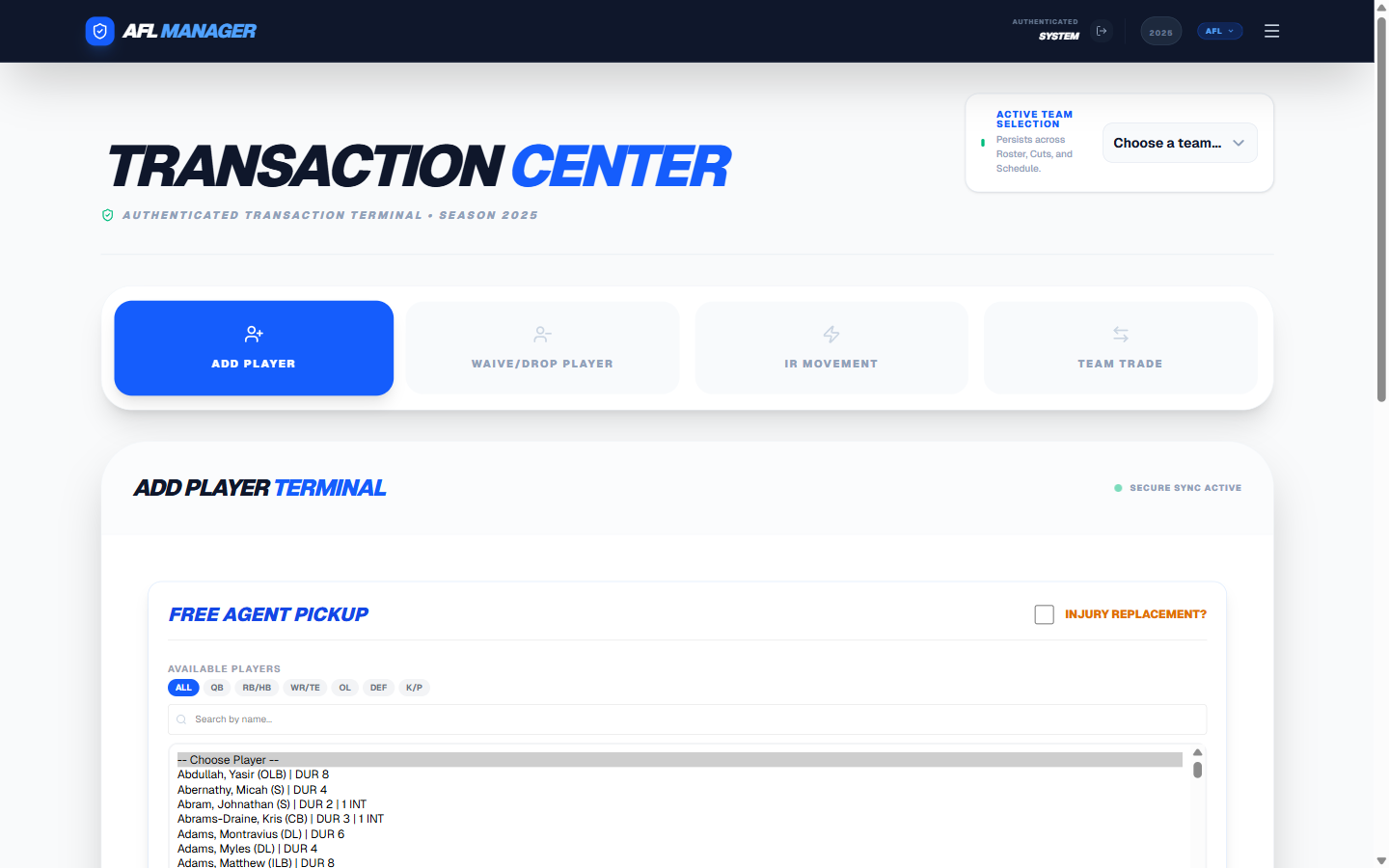
The Transactions page is where you can add, drop, IR, and trade players.
Operation Tabs
Select your transaction type from the four tabs at the top:
- Add Player: Sign a free agent from the available players list. Filter by position or search by name.
- Waive/Drop Player: Remove a player from your roster, returning them to the free agent pool.
- IR Movement: Move a player to or from Injured Reserve.
- Team Trade: Execute a multi-asset trade with another franchise.
Transaction Log
All transactions are logged in a table below the operation panel. You can filter by:
- Status: All / Pending / On Team / Done
- Type: Add, Waive, Drop, IR Move, Trade
- Team: Filter to a specific franchise
Notifications
Every transaction automatically sends an email and WhatsApp alert to the league group.
8. Roster Cuts: Preparing for the New Season
The Roster Cuts page is where you'll make decisions about which players to keep for next season.
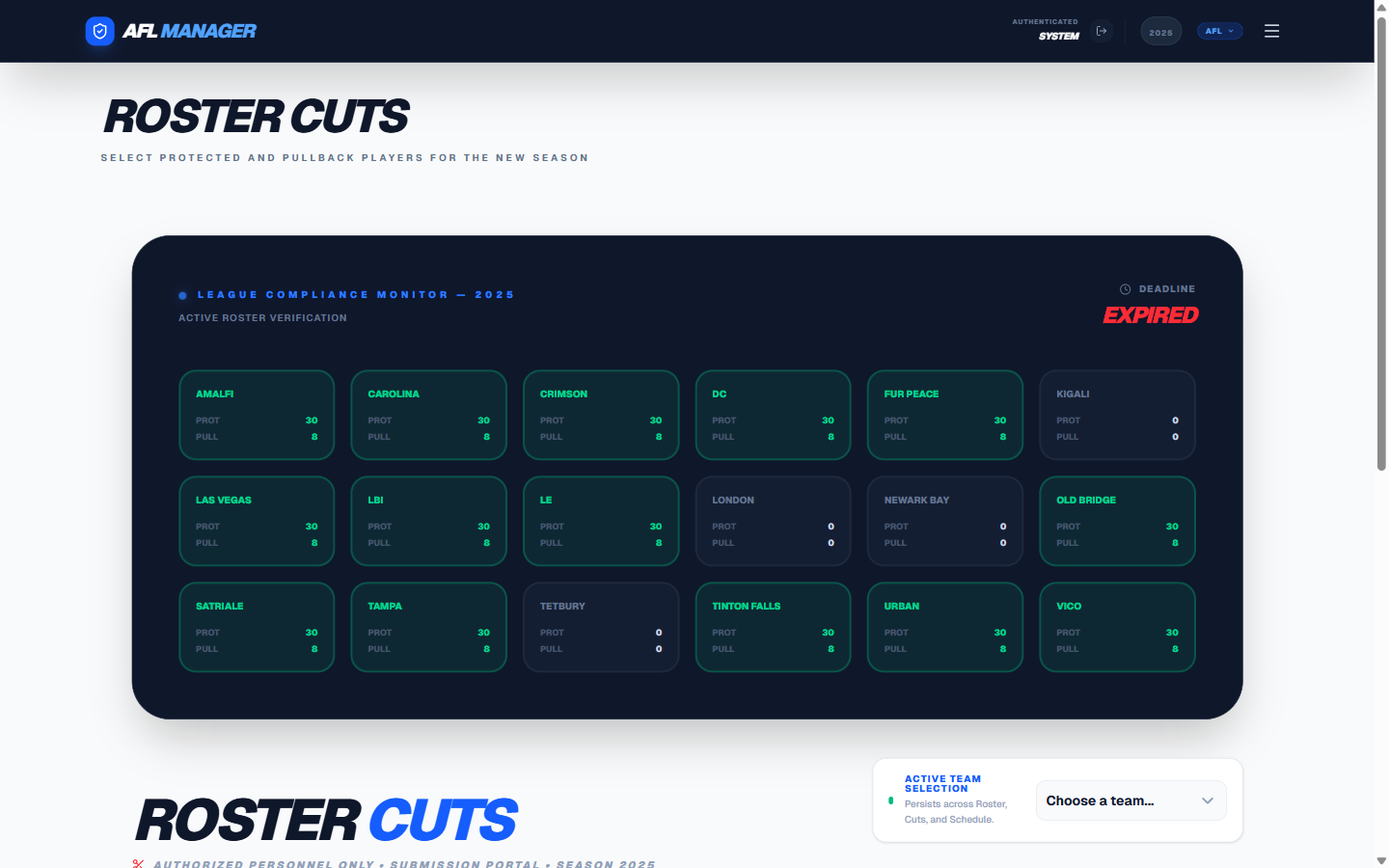
League Compliance Monitor
The dark panel at the top shows all franchises' submission status at a glance:
- Each team card shows PROT (protected) and PULL (pullback) counts
- Green highlighted teams have fully completed their submission
- A deadline countdown is shown in the top right
Protected and Pullback Players
Each offseason, you'll designate players as:
- Protected (max 30): These players stay on your roster.
- Pullback (max 8): You retain first right of refusal in the draft.
- Released: All remaining players are let go.
Making Your Selections
Select your team from the dropdown, then use the Protect, Pullback, or Release buttons for each player. The capacity counters update in real time. Click "Submit Roster Cut List" when done. You can re-submit any time before the deadline.
9. The Trade Block: Make a Deal
The Trade Block is a public marketplace where coaches can list players they are willing to trade.
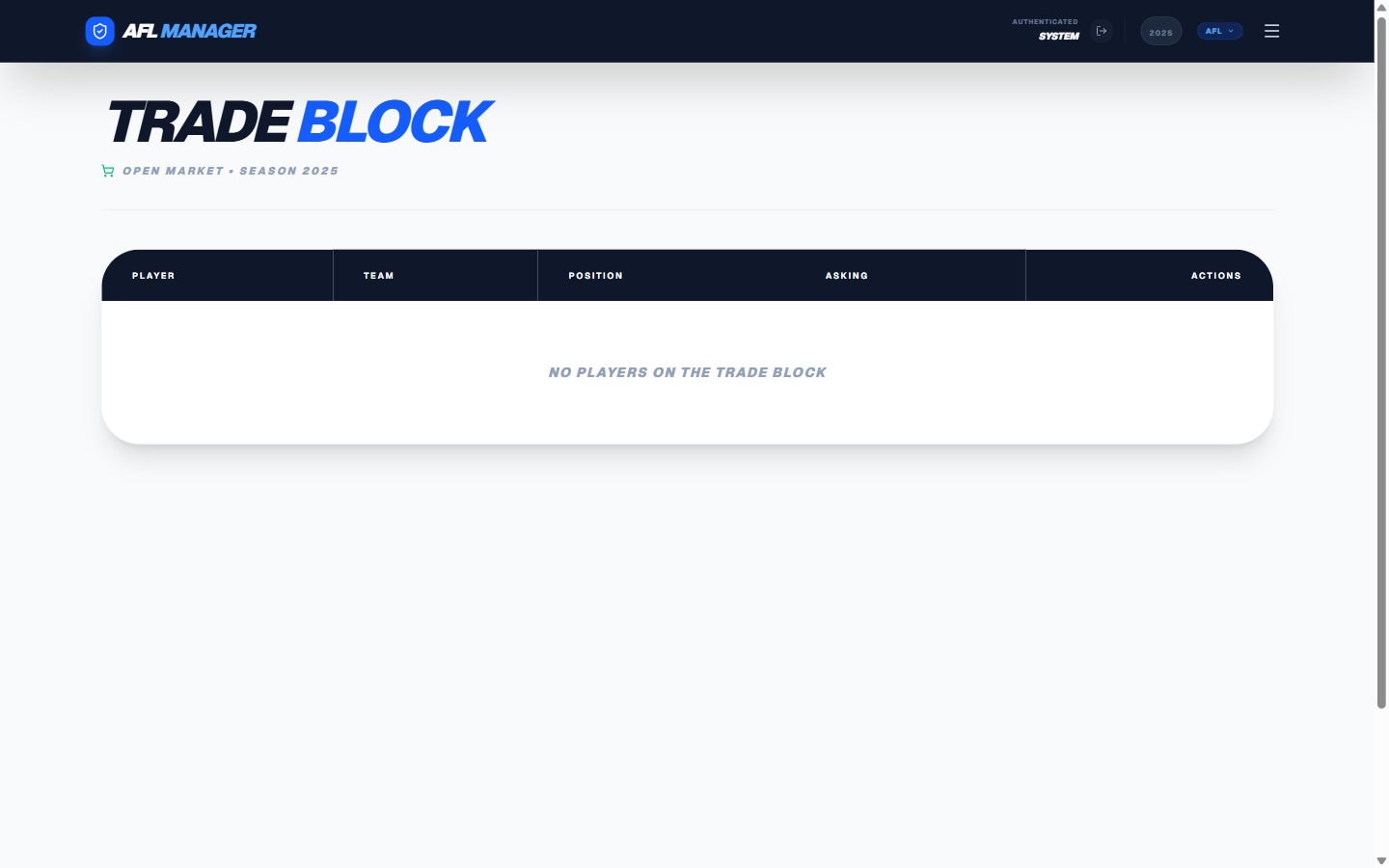
- View the Block: See all players currently listed, along with what the coach is asking for in return.
- Post a Player: Go to your Team Roster page and click the shopping cart icon on any player row to list them. See Section 3 for full instructions.
- Remove a Player: If you have a player on the block, you'll see a red trash icon button next to their name on this page. Click it to remove them, or use the shopping cart button (now green) on your roster page.
10. Coaching Hub: Upload Your COA File
The Coaching Hub is where you'll upload your .COA file for each gameday. This file contains your team's strategy and play calls.
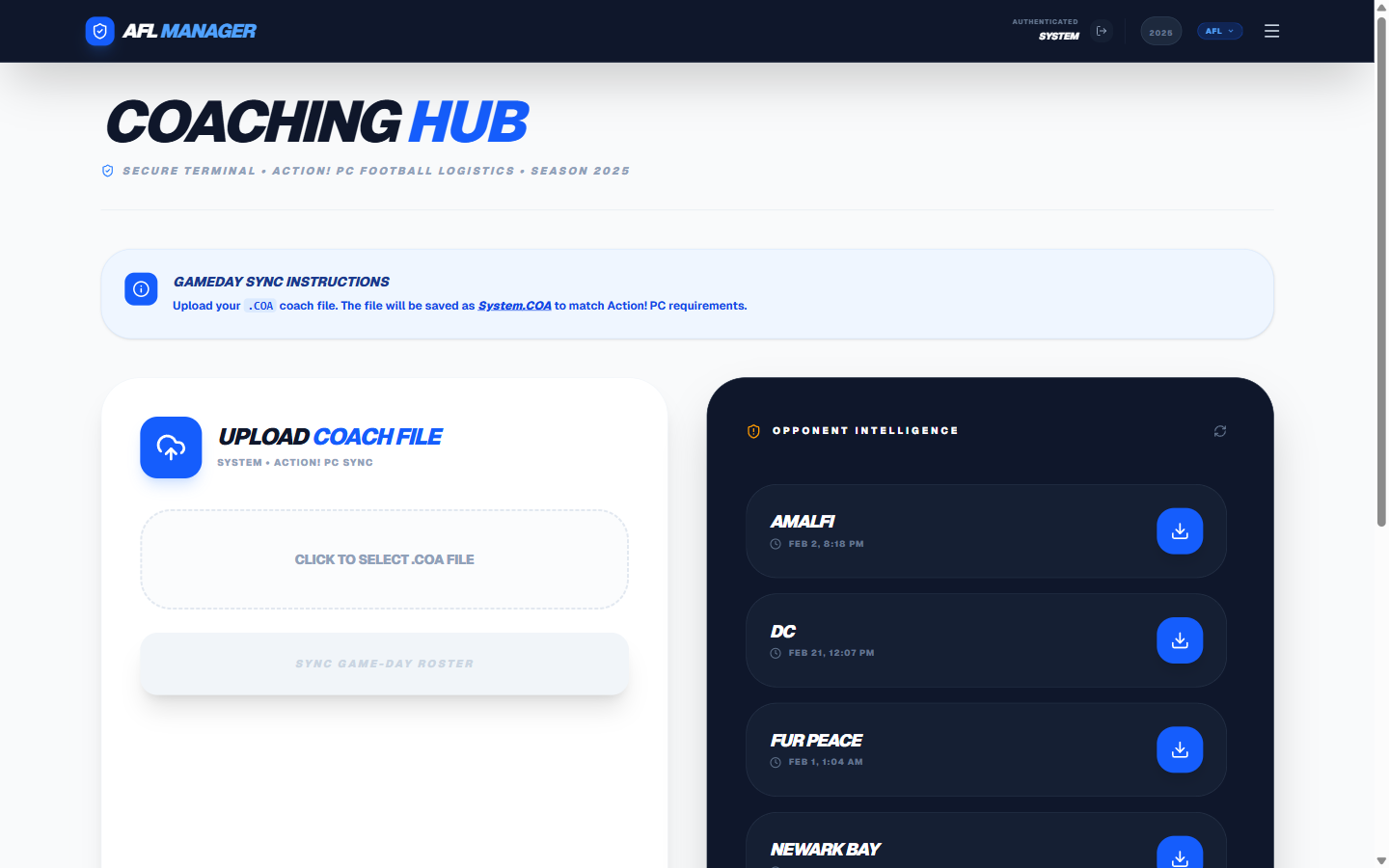
- Upload: Click the upload area to select your
.COAfile. The file is saved automatically with the correct name for Action! PC Football. - Opponent Intelligence: The right panel shows all coaches' COA files available for download, with their last sync timestamp.
- Sync Game-Day Roster: Once a file is selected, click this button to upload it.
11. The Press Box: Game Summaries and Analysis
The Press Box is the league's media center. Here you can:
- Upload game result files for AI-powered analysis.
- Generate game summaries using Google Gemini AI.
- View published summaries from previous games.
12. League Resources: Files and Documents
The League Resources page is a central repository for all league files and documents. Here you can find player photos, team files, the league encyclopedia, and more. Click any link to open or download the resource.
13. League Directory: Find Your Fellow Coaches
The League Directory lists the contact information for all the coaches in the league.
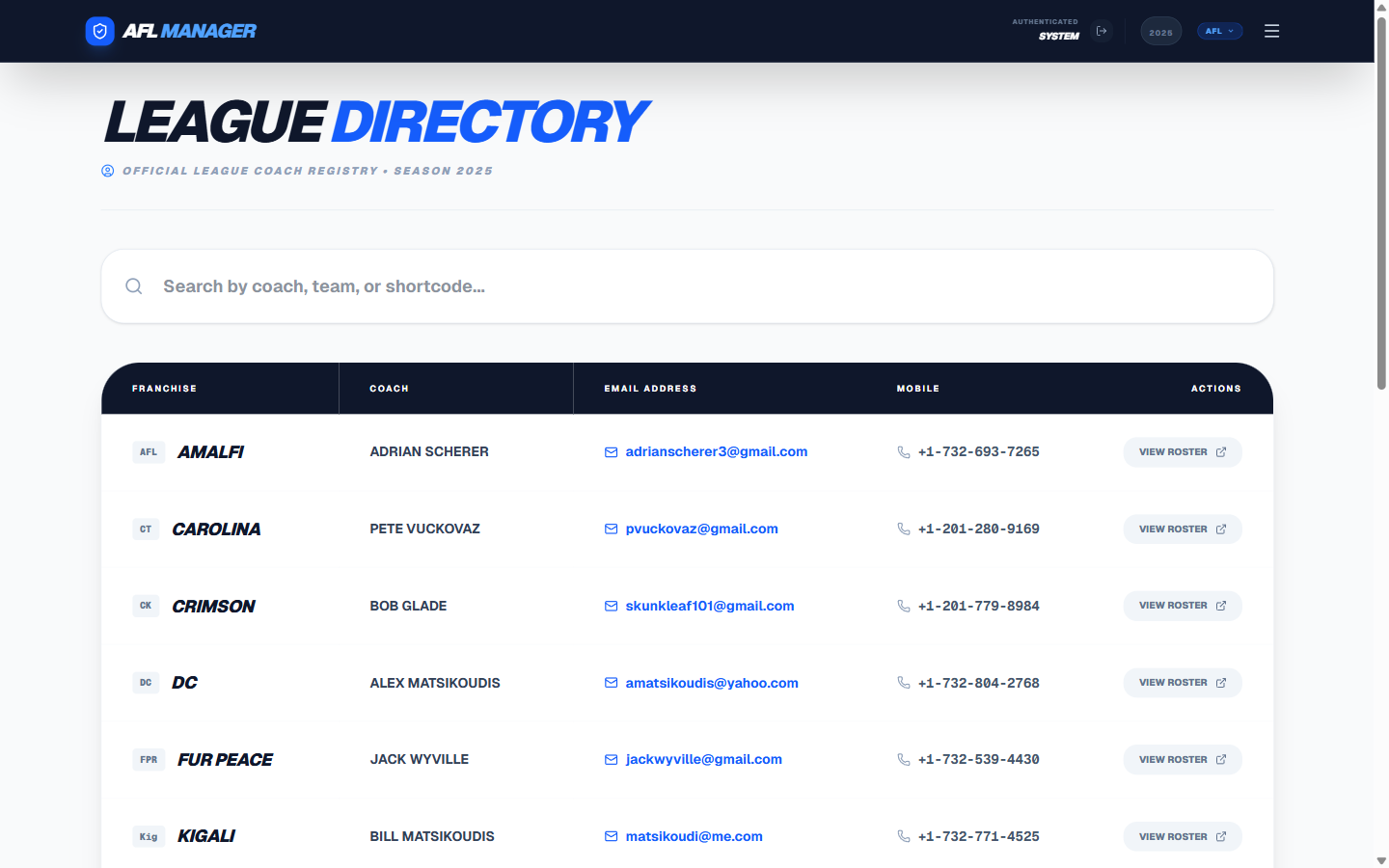
- Search: Use the search bar at the top to filter by coach name, team name, or shortcode.
- Contact: Click any email address to compose a message, or a phone number to dial on mobile.
- View Roster: Click "View Roster" on any row to jump directly to that team's roster page.
14. Constitution & Rules: Know the Law
The Constitution & Rules page contains the full text of the league constitution. A table of contents on the left side of the page allows you to jump to specific sections.
15. Franchise Settings: Your Profile and Password
The Franchise Settings page is where you can manage your coach profile and account security.
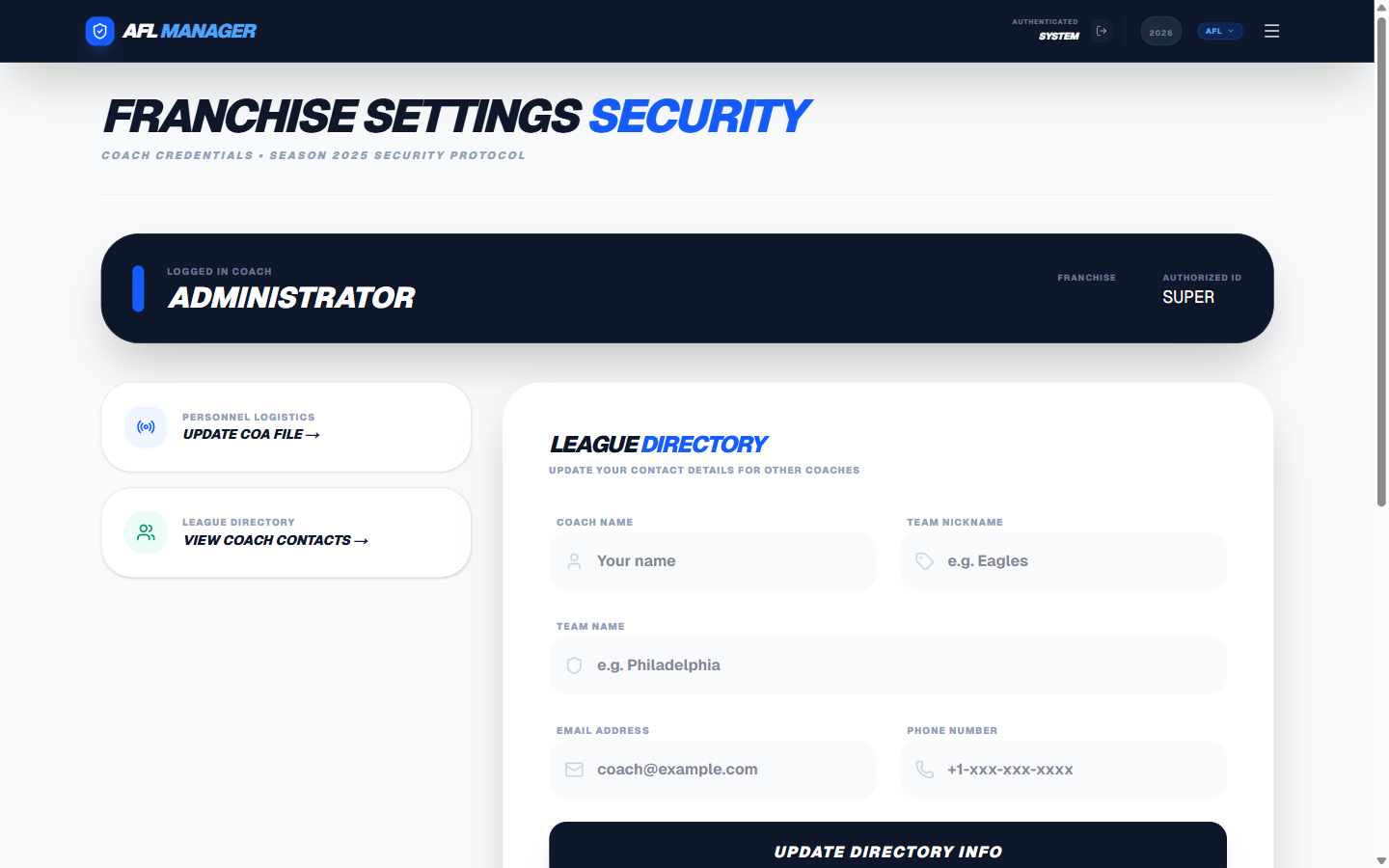
- Update Directory Info: Change your coach name, team nickname, team name, email, and mobile number. Click "Update Directory Info" to save — changes are reflected in the League Directory immediately.
- Change Your Password: Enter and confirm a new password, then click "Save Security Settings".
- Quick Links: Use the shortcut cards to jump to the Coaching Hub or League Directory.
16. Commissioner Panel: League Management
The Commissioner Panel is a special area for the league commissioner to manage the league. This page is not accessible to regular coaches.
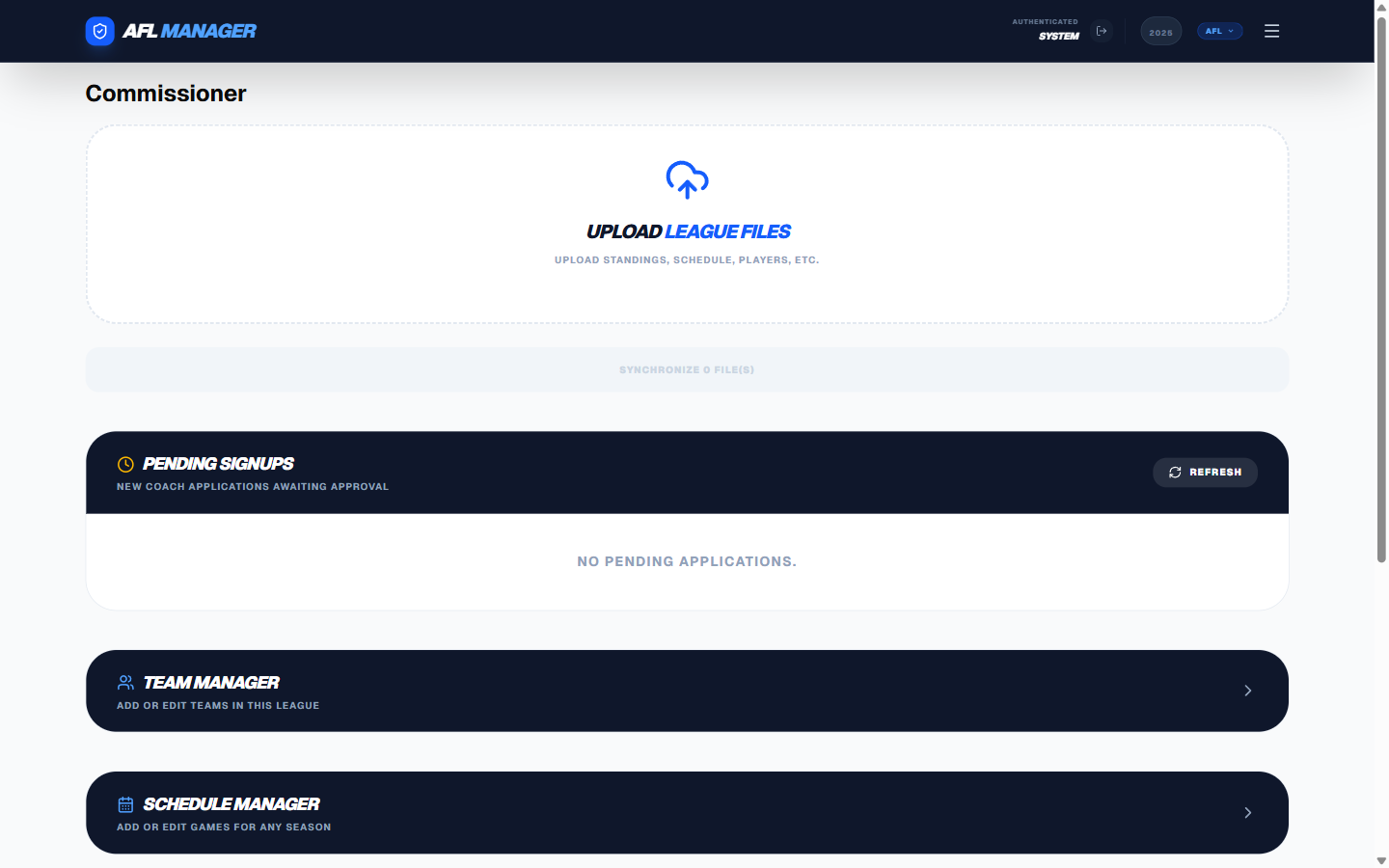
Features for the Commissioner:
- Upload League Files: Drag and drop files (players CSV, schedule, standings) to import data. Click "Synchronize Files" to process.
- Pending Signups: Review new coach applications and click Approve or Reject.
- Draft Setup: Open the wizard to generate a new draft pick order, or add rounds to an existing draft. See Section 6a for full details.
- Draft Picks Audit: Expand this panel to see a list of drafted players who are no longer on the team that drafted them — either on a different team or back as a free agent. Select the year and draft type, then click "Run Audit". Useful for spotting discrepancies after trades or roster moves.
- Team Manager: Add or edit teams in the league.
- Schedule Manager: Add or edit games for any season.
- Season Awards: Set playoffs, division winners, and champions per season.
- League Settings: Edit rules and configuration values like
cuts_year,draft_year, roster limits, and deadlines. Draft clock durations per round are also configured here (draft_clock_round_1,draft_clock_round_3, etc.).
17. Automated Notifications: What to Expect
The GFL Front Office sends automated email and WhatsApp alerts throughout the year so you never miss a deadline or a key league update. You don't need to do anything to receive these — they go out to the full league group automatically.
Here's a complete breakdown of every notification the system sends and when to expect it.
17.1. Weekly Schedule Update
When: Once per week during the active GFL season (fires automatically when the NFL regular season begins).
What's included:
- The current week's matchups with scores for completed games
- Any games flagged 🚨 PAST DUE (scores not yet entered for a prior week)
- A reminder of the next Sunday 1:00 PM ET score submission deadline
- Full league standings by division
Example subject line: GFL Update: 2026 Week 4
Note: During the NFL preseason and offseason, this notification is automatically suppressed — you won't receive it until real GFL games are due.
17.2. Roster Cuts / Pullback Alert
When: Periodically in the weeks leading up to the roster cuts deadline (configured by the commissioner).
What's included:
- A list of every franchise that hasn't yet completed their Protected and Pullback submissions
- Each team's current counts vs. the required totals (e.g., 25/30 Protected, 6/8 Pullback)
- Time remaining until the deadline
- A direct link to the Cuts page
Example subject line: URGENT: GFL Roster Requirements (3d 12h remaining)
Once every franchise has submitted their complete selections, this alert stops firing automatically.
Tip: You can check your own submission status at any time on the Roster Cuts page — teams shown in green are complete.
17.3. Free Agent Draft Cutoff Notifications
When: After the last pick is made in the free agent draft, a 48-hour late selection window opens. Notifications fire at these milestones during that window:
| Milestone | When it fires |
|---|---|
| Window Open | Immediately when the 48-hour window begins |
| 24 Hours Left | 24 hours before the window closes |
| 12 Hours Left | 12 hours before the window closes |
| 6 Hours Left | 6 hours before the window closes |
| 1 Hour Left | 1 hour before the window closes |
What's included:
- The exact deadline date and time (Eastern Time)
- A reminder that any team with a SKIPPED pick can still submit a late selection before the window closes
Example subject line: GFL Draft: 24 Hours Left for Late Selections
After the window closes, the draft is considered complete and no further late selections are accepted.
Tip: If you were skipped during the draft, head to the Draft Board and look for your pick — you'll see a "Late Selection" button next to any pick you're still eligible to make.
17.4. Individual Pick & Transaction Notifications
In addition to the automated league-wide updates above, real-time alerts fire whenever a specific action happens:
| Event | Who it goes to |
|---|---|
| A draft pick is made | Full league (email + WhatsApp) |
| A pick is passed | Full league (email + WhatsApp) |
| A transaction is submitted (add/drop/trade/IR) | Full league (email + WhatsApp) |
These fire immediately when the action occurs, not on a schedule.